Sharing schedules with co-worker can be helpful when collaborating to schedule students, or when managing the schedule for an aide.
Sharing your schedule with another service provider
1. Click the Share button above your schedule

2. Select the name(s) of the provider(s) you would like to share your schedule with, and choose whether they should have View only access, or View and edit access. As the terms imply, View only will let them view but not make any changes to your schedule, while View and edit gives them the ability to add/remove students, confirm services, and schedule services (same capabilities you have).
You can only share with providers who are assigned to the same school(s) as you.
If a provider works at multiple schools, you will only see their students at your assigned schools, other student names will appear masked (**** ****) for privacy reasons.
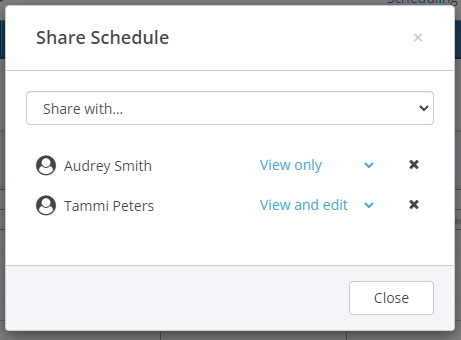
3. Click Close to return to your schedule.
The provider you share with may need to refresh their page to access your schedule if they had their schedule open.
To stop sharing, open the share dialog and click the x next to the provider's name.
Accessing another service provider's shared schedule
Once another service provider has shared their schedule with you, you access their schedule by selecting it from the Shared Schedules menu. (you may need to refresh the page in your browser if you had the page open when they shared)
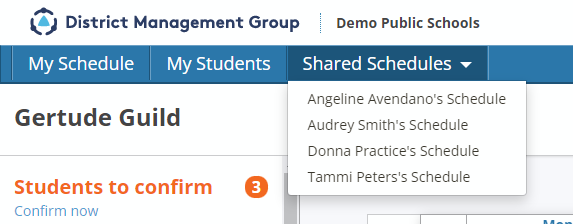
If the schedule is shared as View only, you will be able to view the schedule and select appointments to see the student's schedule, but not to make any changes.
If the schedule is shared as View and edit, you will be able to:
- Schedule services
- Edit, move, or remove appointments
- Add indirect service activities
- Access the student setup to update the caseload and confirm/edit services
To return to your schedule, select My Schedule from the top menu.
If you would like to manage the schedule for an aide or assistant who doesn't have a schedule in DMSchedules, please contact DMGroup support. with the provider's full name, email address, and role, and let us know if you would like us to invite them to access their account.
0 Comments