A collection of tips, tricks, and answers to frequently asked questions to help you make the most of DMSchedules for Elementary Schools.
Table of Contents
- Splitting a period on the schedule
- Using a schedule from a previous year as a starting point
- Implementing a weekly early release day
- Scheduling teacher teams across grades
- Viewing staff utilization in minutes
- Breaking down the ELA block
- Creating multiple periods of Intervention (or Specials)
- Working on multiple versions of your schedule
- Staggering lunch or other periods within a grade
- Adding co-teachers or push-in staff to periods
- Creating a pull out schedule for gifted, ELL, or other services
- How do I add more collaborator accounts?
Splitting a period on the schedule
Have you ever needed to split a period to schedule it across a lunch, recess, or period? Although we strive to schedule uninterrupted periods, there is sometimes no choice than splitting a period to accommodate the constraints of a schedule.
Double click on a period, and click Split period to split the period in half, then size and move the resulting periods as needed.
See this article for more detail.
Using a schedule from a previous year as a starting point
You can copy scenarios across school years using the Copy Scenario option. See this article for details.
This is also covered in our Working with Scenarios tutorial video.
Implementing a weekly early release day
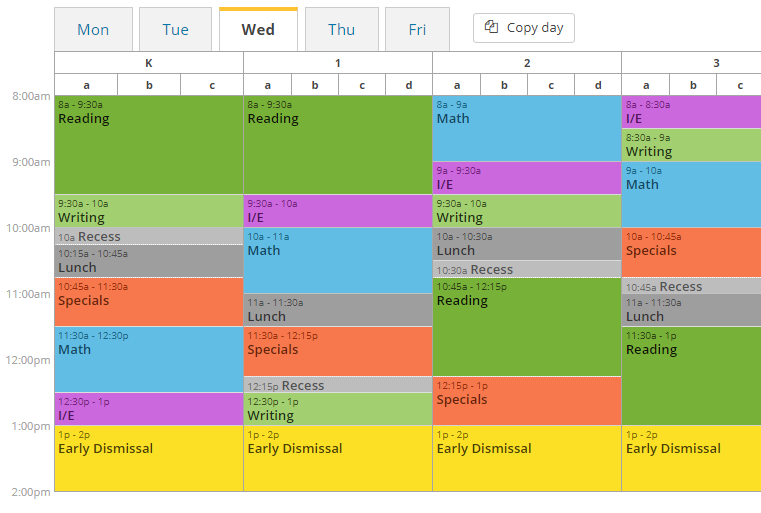
Although you cannot specify a different end time for a specific day on the schedule, the following workaround has worked well.
- Set your homeroom cycle to be different by day by going to Setup > Schedule Cycle, and answering No to the first question. Specify 5 days in the "The homeroom schedule repeats every..." field. Select Weekdays (Mon-Fri) for the label.
- Create a period for your early release day called Dismissal. Set the period duration to be the difference between regular school day and the early release time. For example, if your regular schedule ends at 2:30pm and early release is at 1:30pm, set the dismissal period to 60 minutes.
- Now go to the Main Schedule and place the dismissal period at 2:30 on your early release day. This will indicate the time is no longer available for other periods.
Scheduling teacher teams across grades
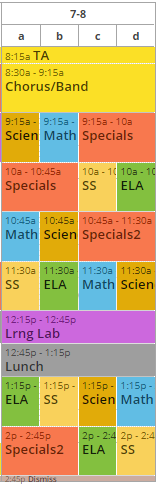
By default, DMSchedules assumes that a departmentalized homeroom teacher teaches within a single grade. In reality, some teachers teach across two or more grades. To work around this, we suggest combining the grades into a multi-grade which will allow you to create schedules with teachers teaching across more than one grade.
- Request a grade change from DMGroup. For example, change from Grades 4 and 5 to a combined grade called 4-5. The number of sections for grade 4-5 will equal the total sections for the previous grades 4 and 5.
- Set up your departmentalized team in Setup > Period allocation, Edit (just above the grade column), then schedule the teachers across the grades.
Viewing Specials Staff Utilization in Minutes
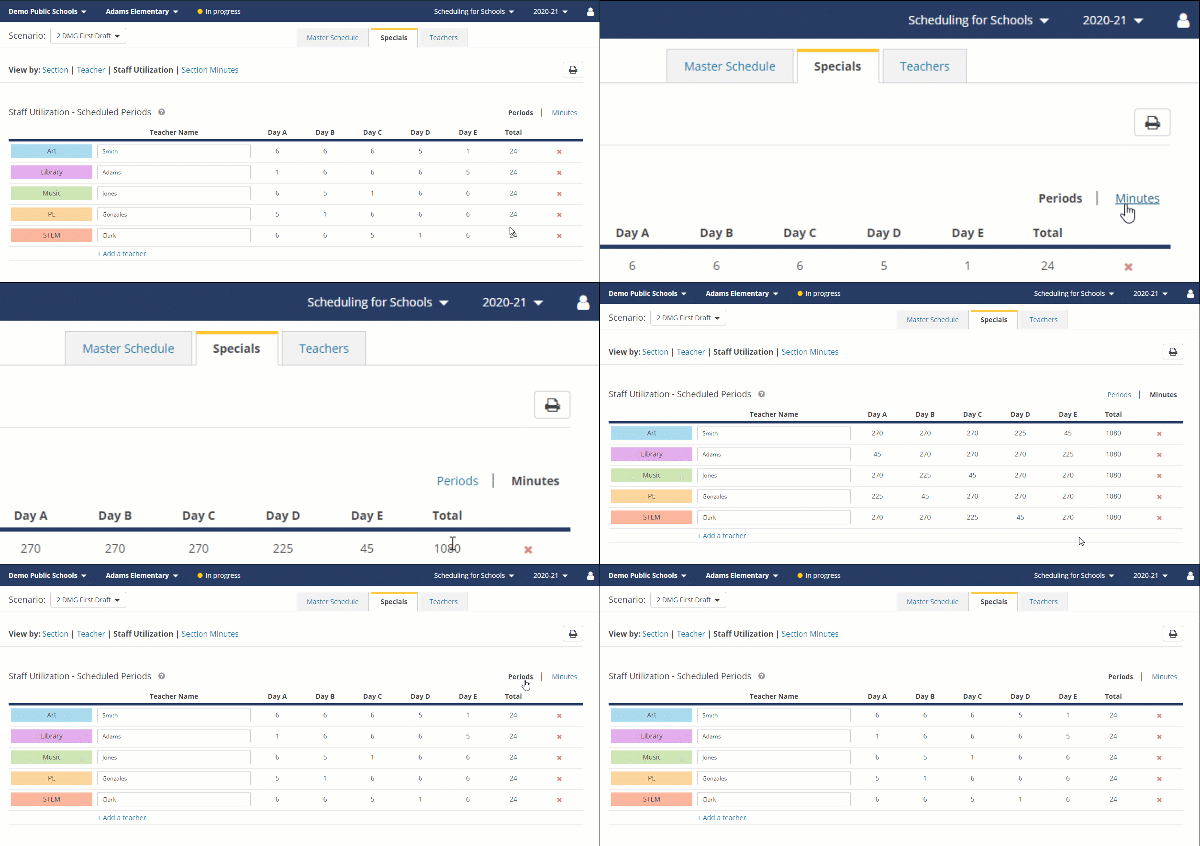
You can now view specials staff utilization in minutes in addition to number of periods. This is particularly helpful to assess workloads with specials of different durations.
Breaking down the ELA block
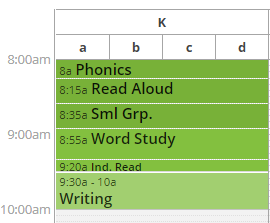
ELA is usually one of the largest blocks of time on the schedule, but how much guidance do we want to provide teachers on how the time should be spent? We see a growing trend in breaking this period into more granular modules which offers several benefits:
- Consistent allocation of time across classrooms. All students regardless of classroom or teacher receive the same amount of phonics, word work, writing, etc.
- More predictable times for push-in services during small group instruction
- Ability to regroup students across classrooms during differentiated small group instruction.
In Setup > Period Allocation, delete your regular ELA period if you already have one, and create multiple smaller periods. For example Phonics, Guided Reading, Independent Reading, Writing, etc. This should be based on your literacy curriculum and your literacy team.
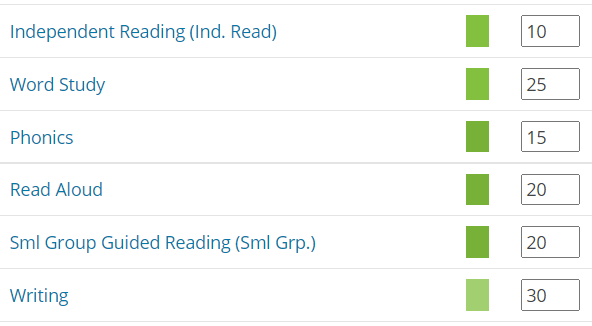
Now place the blocks on the schedule, and try to stagger small group instruction by grade to enable teachers to move from grade to grade through the day.
Creating multiple periods of Intervention (or Specials)
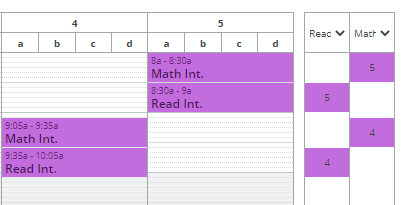
If you need to create multiple Intervention or Specials period where students receive two periods in a day, follow these simple steps:
- In Setup > Period Allocation, add the first period (e.g.: Reading Intervention)
- Add another period with the same category and a different name (e.g.: Math Intervention)
- Now you have 2 different purple blocks you can drag on the schedule.
Note that although period names (and short names) have to be unique, you can create multiple periods of the same Period Category.
Working on multiple versions of your schedule
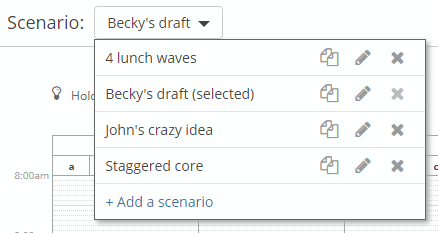
To experiment with different versions (or Scenarios) of your schedule, simply add a new scenario or make a copy of your current scenario as a starting point.
+ Add a scenario
Creates a new scenario with default settings to start from scratch.
 Copy a scenario
Creates a duplicate of the scenario including settings, scheduled periods, specials, and alternate schedules.
 Rename a scenario
Changes the name of an existing scenario.
 Delete a scenario
Deletes the scenario and related setup and schedules.
Watch our video tutorial Working with Scenarios to learn more.
Staggering lunch or other periods within a grade
To schedule classrooms independently within a grade:
1. Click the grade heading to access the grade/section view
2. Drag blocks for each classroom as needed
Bonus tip: Press the Shift key while dragging ro sizing a period to adjust by 1 minute increment.
Adding co-teachers or push-in staff to periods
1. Double click any period on the main schedule or within a grade
2. Click Add a teacher and select additional teachers to add to each classroom.
3. View individual schedules for assigned staff by going to Teachers > Other Staff Schedules.
Creating a pull out schedule for gifted, ELL, or other services
You may find it helpful to create teacher schedules for services such as ELL, Gifted, or other pull-out services.
1. Contact DMGroup at support@dmgroupk12.com with the service names and the number of classrooms you’d like to add.
2. Create periods specific to these supports in Period Allocation.
3. Individual teacher schedules will automatically be created for these services.
How do I add more collaborator accounts?
If you need more user accounts for your school, please contact us at support@dmgroupk12.com with the following information:
- District Name
- School name
- User’s full name
- User’s email address
We will send an invitation email with instructions within 24 business hours of the request.
0 Comments