A common practice for upper elementary grades is to departmentalize the grade where each teacher specializes in a subject matter and teaches all the students of the grade in separate periods. This article describes how to setup departmentalization in DMSchedules Elementary School Scheduling software.
Specifying which grades will be departmentalized
Go to Setup > School Information, and click Departmentalize this grade for each grade you would like to departmentalize. It's also a good idea to enter the name of each teacher at this time by replacing the default "Teacher 1", "Teacher 2", etc.

Allocating minutes of instruction
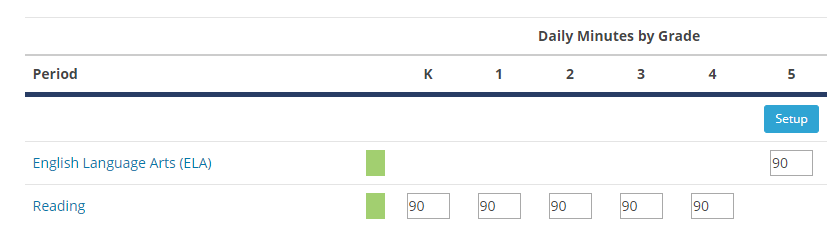
Continue to the Period Allocation page and add the periods and allocated minutes accordingly. Keep in mind that each teacher needs to teach their dedicated subject for the same duration as the other teachers. For example, with a two teacher team, if you allocate 90 min for ELA, you need to allocate 90 min of math for the other teacher. Teachers can teach multiple subjects as long as the total of their subjects equals the total of the other teachers subjects. For example, teacher 1 teaches ELA for 90 min and Social Studies for 30, and teacher 2 teaches Math for 75 min and Science to 45 min. Don't worry too much about the minutes at this time, you can always change them later, but do think about your team structure (who teaches what).
Once you have created the periods and allocated the minutes, click Setup above the grade in order to define the team structure.
Setting up the team structure

Enter the team name and select the teachers on the team. Add each teacher on the team by clicking Add a teacher and selecting the teacher name.
If you have multiple teams, click Add a team to create additional teams and continue adding teachers.
Click Next when done.

On this next step, you assign the subject that each teacher/team will teach. Add subjects by clicking Add a subject and selecting the subject. You can select up to three subjects per teacher.
Click Done when you have finished assigning subjects.
Scheduling the departmentalized grade
Click Main Schedule to access the scheduling grid. Click the departmentalized grade heading to access the section view and schedule that grade.

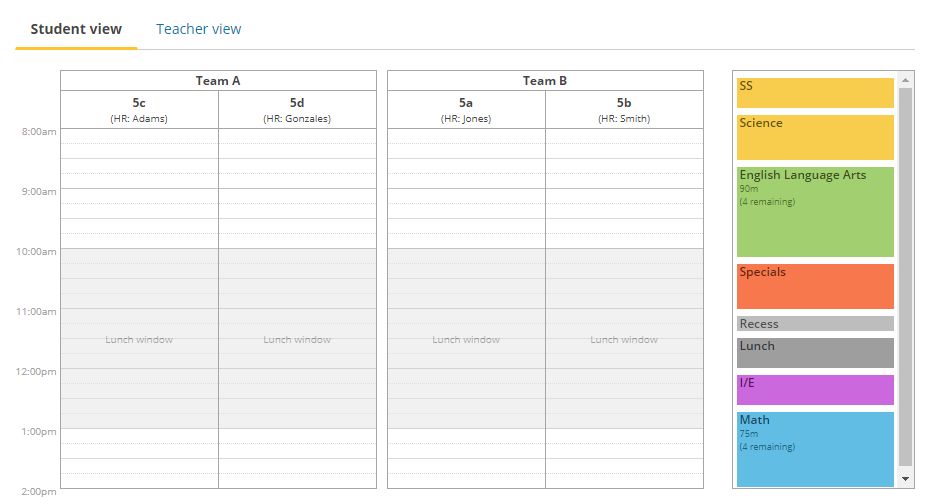
On this page you will see the detail of each team, section, and the periods to be scheduled. Drag the periods on the schedule for each section until you are satisfied.
For example:

The default view shows each team, and each section of students within each team as columns. You will see the teacher names within the periods under the period name.
You may also access a teacher view where columns represent each teacher, with the section name indicated below the period name. Click Teacher view to access it.

You can go back and forth between the main calendar and the grade in order to coordinate times with other grades.
Click Homeroom Schedule to return to the homeroom view.
Viewing/Printing finalized schedules
Once your schedule is finalized, if you have departmentalized grades, you will have access to additional team schedules for each departmentalized grade. Select Teacher Teams in the schedule drop down, then the grade and team you would like to view/print.
Also note that individual homeroom teacher schedules will show their departmentalized schedule.
0 Comments