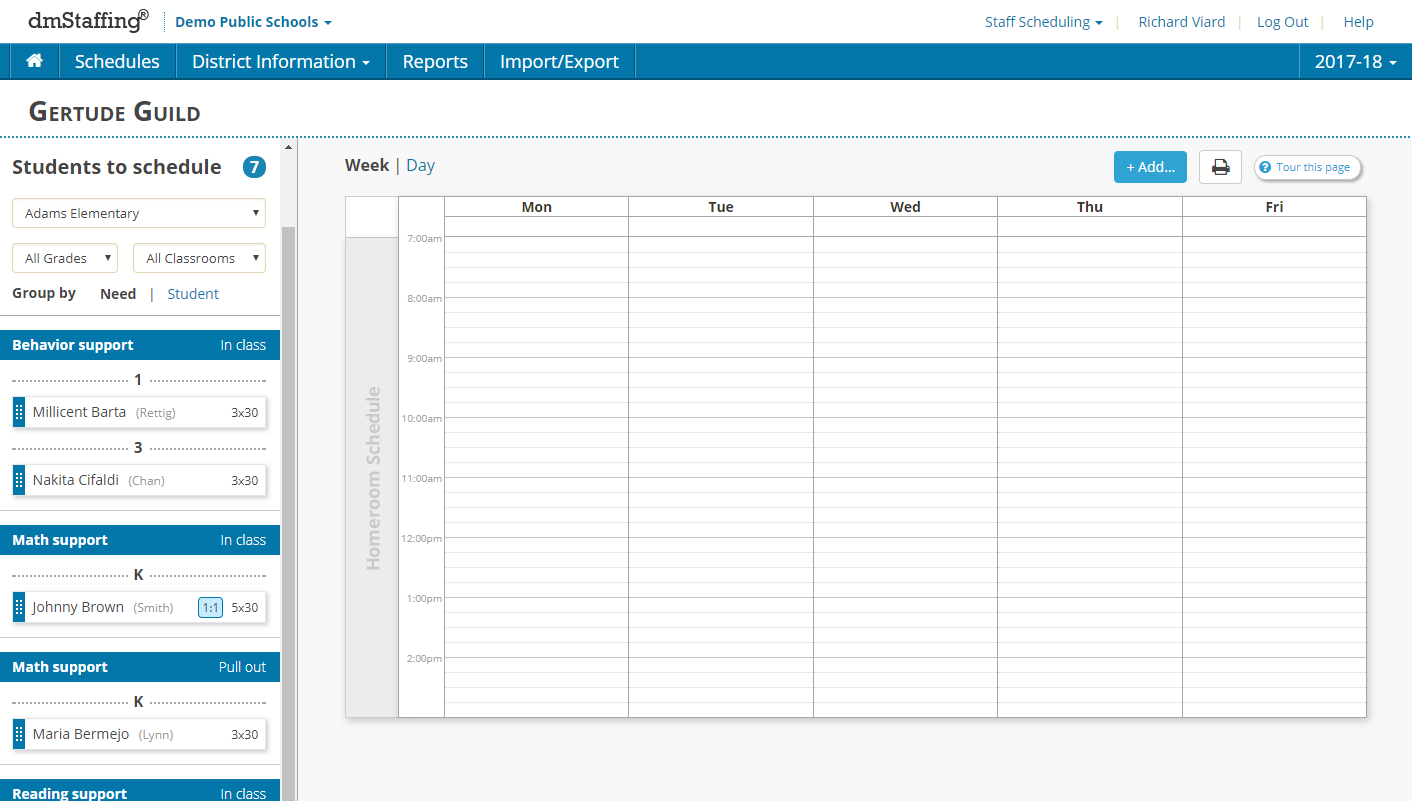
When you first access your schedule page, you will see student services to schedule on the left and your blank weekly schedule.
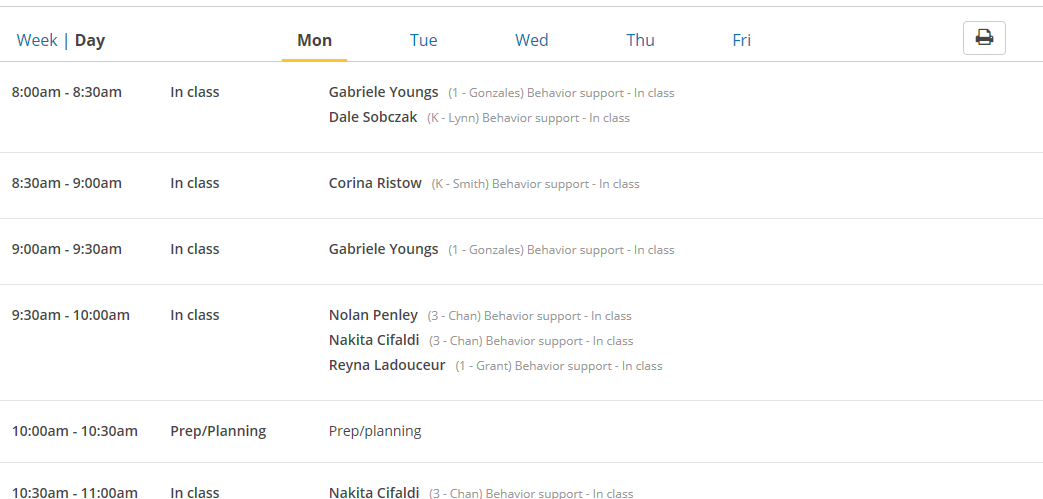
You may also display your schedule for a specific day by clicking the Day link and selecting the desired day. Day view displays more information than the week view, and provides the ability to print.
Scheduling a student service
Clicking a service in the Students to schedule panel will display the student’s homeroom schedule, and any sessions already scheduled by other support staff for that student. This is helpful in order to find the best time to schedule the service.
Drag the service onto the calendar at the desired day and time to schedule it.
If you need to adjust the start time after dropping, click on the service and change the time appropriately.
If the service frequency calls for more than 1x/week, you will have the opportunity to select the days you wish to schedule the service on. This is faster than dragging the services for each day.
You may filter the student list by selecting a school (if you have students in multiple schools), a grade, or a classroom.
You may also view the student services grouped by area of need, or by student. By default, the list is grouped by area of need.
Grouping Students
There are several ways to group students.
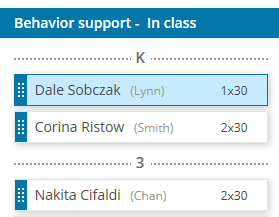
Select multiple student services in the students to schedule panel by clicking them. Notice that services are grouped by area of need and setting, and sorted by grade and classroom to make it easy to identify possible groups. Just click on each student you want to group until their service is highlighted, and drag them together onto the schedule. If students have different homeroom schedules, you will see the schedule for each selected student. This is helpful in finding time where each student is available.
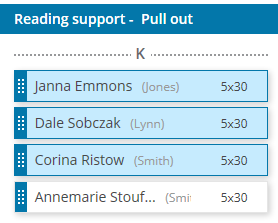
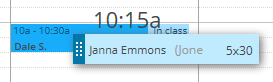
If you want to add a student to an already scheduled sessions, drag the student service onto the session. Once the session on the calendar highlights, let go and the student will be added.
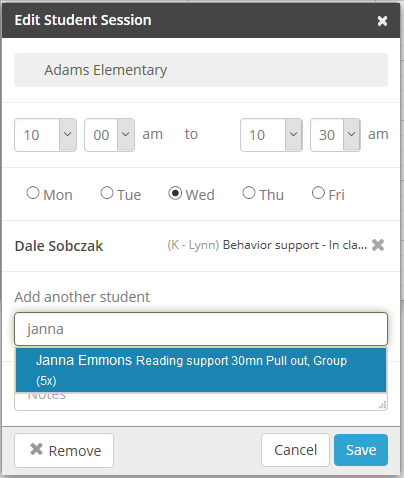
You may also add a student by clicking a session on the schedule, and adding the student by typing the first letters of the student’s first and last name in the add a student field.
Moving sessions
You can move an already scheduled session to another day or time by dragging it to the desired day and time on the schedule.
Scheduling other activities
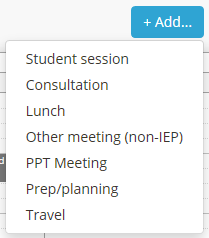
In addition to scheduling student services, you may also want to schedule other activities such as prep/planning, IEP meetings, travel, consultation, etc. There are two ways to add other activities:
Click the Add… button above the schedule, select the type of activity, start and end time, day(s), and enter a title for the activity, then click Save
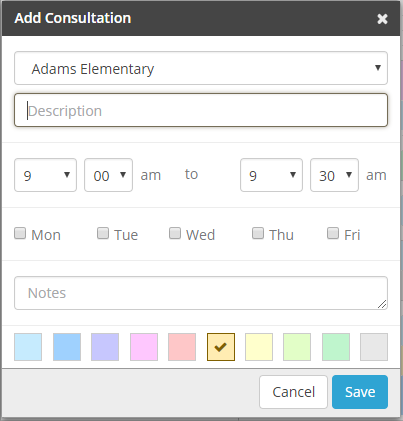
- or – Click directly on the schedule at the day and time you would like to schedule the activity, then select the type of activity and add a title.
If the activity repeats on multiple days, check the days you would like the activity to repeat on.
Changing an event color
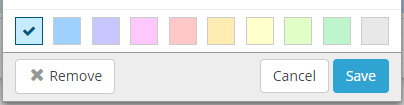
Click an event to edit it and choose a color from the palette, then click Save. Colors can be used to encode more information in your schedule such as different grade levels, subjects, or need.
Removing a student from a session
If you need to remove a student from a session:
Click the event where the student is scheduled
Click the x next to the student name
Click Save
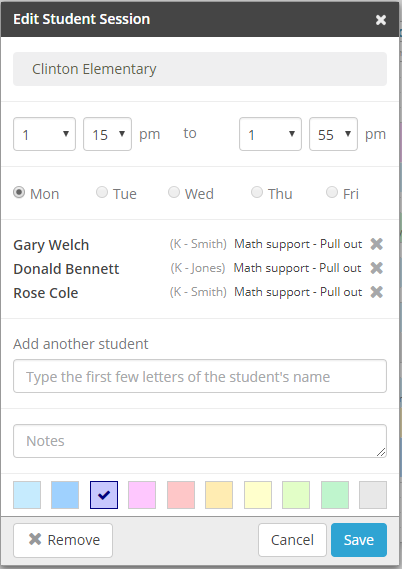
The student’s service will now appear in your Students to schedule panel. You can now schedule the student at another time by dragging the service onto the calendar.
Removing an event
To remove an event from the schedule, click the event and click the Remove button.

Printing your schedule
Once you have completed your schedule, you may print it for easy reference.
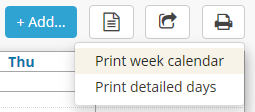
The the week view of the calendar, clicking the Print button gives you two choices:
- Print week calendar - Prints what you see in the week view.
- Print detailed days - Prints the same details as the Day view with one day per page.
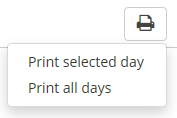
From the Day view the print options are:
- Print selected day - Prints the day you are currently showing.
- Print all days - Prints all the days with one day per page.
NOTE: Turn off any popup blocker or ad blocker in your web browser in order to print as these are known to interfere with printing.
0 Comments